
Video tutorial — coming soon
Follow the written steps and screenshots below while the video is being prepared.
Before you begin
Prepare a final title, a short reader-facing description, the author’s name, language, category and cover image. Keep the source document and exported PDFs in a clearly named folder. Confirm your right to distribute the chosen edition.
You will choose a selling format, attach its required file and submit the listing for review. An optional print-on-demand request is separate from that selling format.
1. Open Add Book
Sign in and open Add Book in your account. A new form is for a new title; use Manage Books → Edit when correcting an existing title.
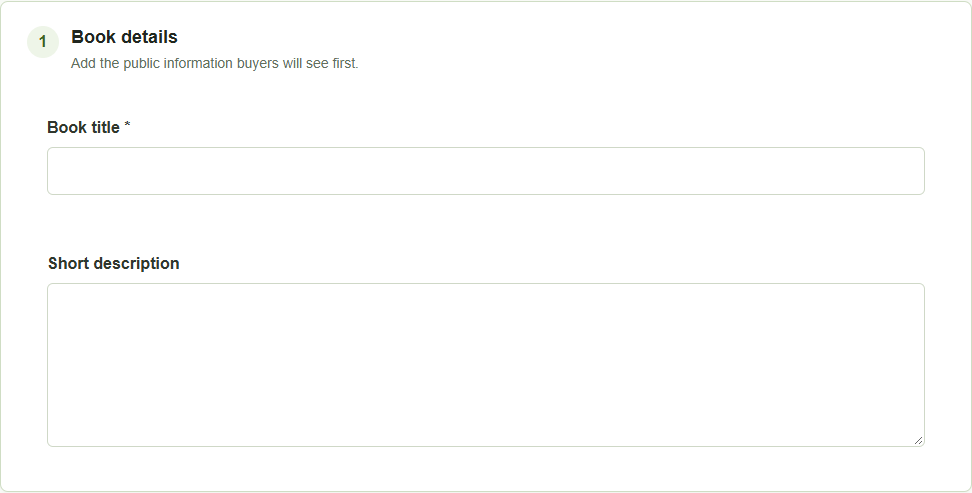
Enter the Book title exactly as it should appear to readers. Use the original Pashto or Dari spelling where appropriate. Write a short description that explains the subject or story rather than repeating the title.
2. Choose the selling format
- PDF download: the customer receives the downloadable book file.
- Online exclusive: the customer reads through their Ketabona Bookshelf.
- Physical book: copies you stock and ship yourself. This is not the same as a print-on-demand request.
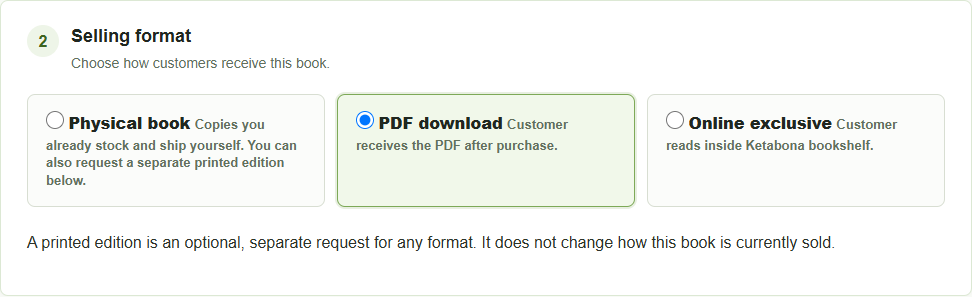
Do not choose Physical book simply because you want copies printed on demand. Requesting a printed edition is a separate step.
3. Set price and availability
Enter the price for the selling format you selected. If you use a discounted price, check that it represents the offer you intend. Review the displayed currency.
For an online-exclusive book, the setting allowing new purchases controls new online sales. Turning it off does not remove access from existing readers. Printed-copy earnings are configured separately.
4. Upload the right files
- Add a clear Cover Image in an accepted image format. The form currently accepts JPG, JPEG, PNG or WebP up to 20 MB.
- For PDF download, provide Book File (PDF). For online reading, provide Online Reader PDF. These inputs are shown according to your selected format.
- Use an unambiguous filename and wait for the upload to complete. The current PDF limit shown by the form is 100 MB; follow the form if its requirements change.
- If requesting a printed edition, use the separate PDF for printing field and review its checks. Do not assume the reader PDF or product cover is automatically print-ready.
5. Complete the book information
Enter the real author and the book’s language. Choose the most relevant category, then add a small number of accurate search tags if useful. Avoid naming every category just to appear in more places.
If a printed edition is requested, confirm print rights and review the selected print style. Ketabona prepares the full print cover during review; the product cover image is only part of that work.
6. Submit and check the status
Review the title, cover, price, format and files together. Select Submit for review once and wait for the response. A submitted listing is not automatically public.
Open Manage Books to confirm that your book is listed with its current review status. Keep the original files and use Edit on that listing for corrections rather than creating another copy.
- The correct title and author are saved.
- The file matches the selling format.
- The listing appears in Manage Books, with a clear status.
- A printed-edition request is not treated as approval to sell printed copies.
Common problems
If the form asks for a PDF you did not expect, recheck the selected selling format. If the same title is already in your workspace, edit that listing. If a submission fails, read the specific error before retrying.
For file preparation, continue to Prepare an online or downloadable PDF.